Invoice Generator & Maker
Get started in just a few steps
Quick Start Guide
Get up and running in under 5 minutes
Open Chrome Extensions Page
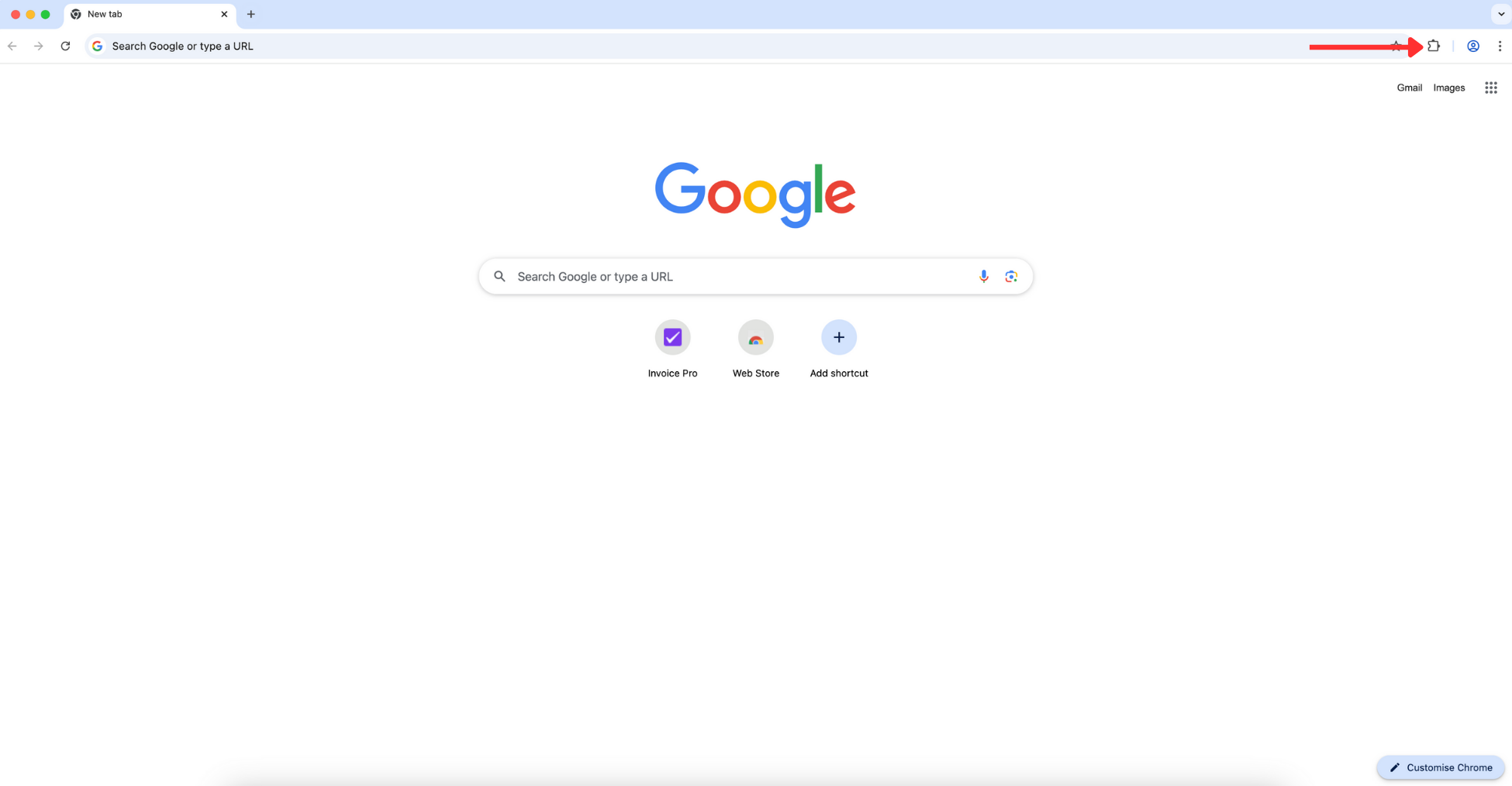
Go to chrome://extensions/ or click the three dots menu → More tools → Extensions. Make sure "Developer mode" is enabled in the top right corner.
Find and Pin Extension
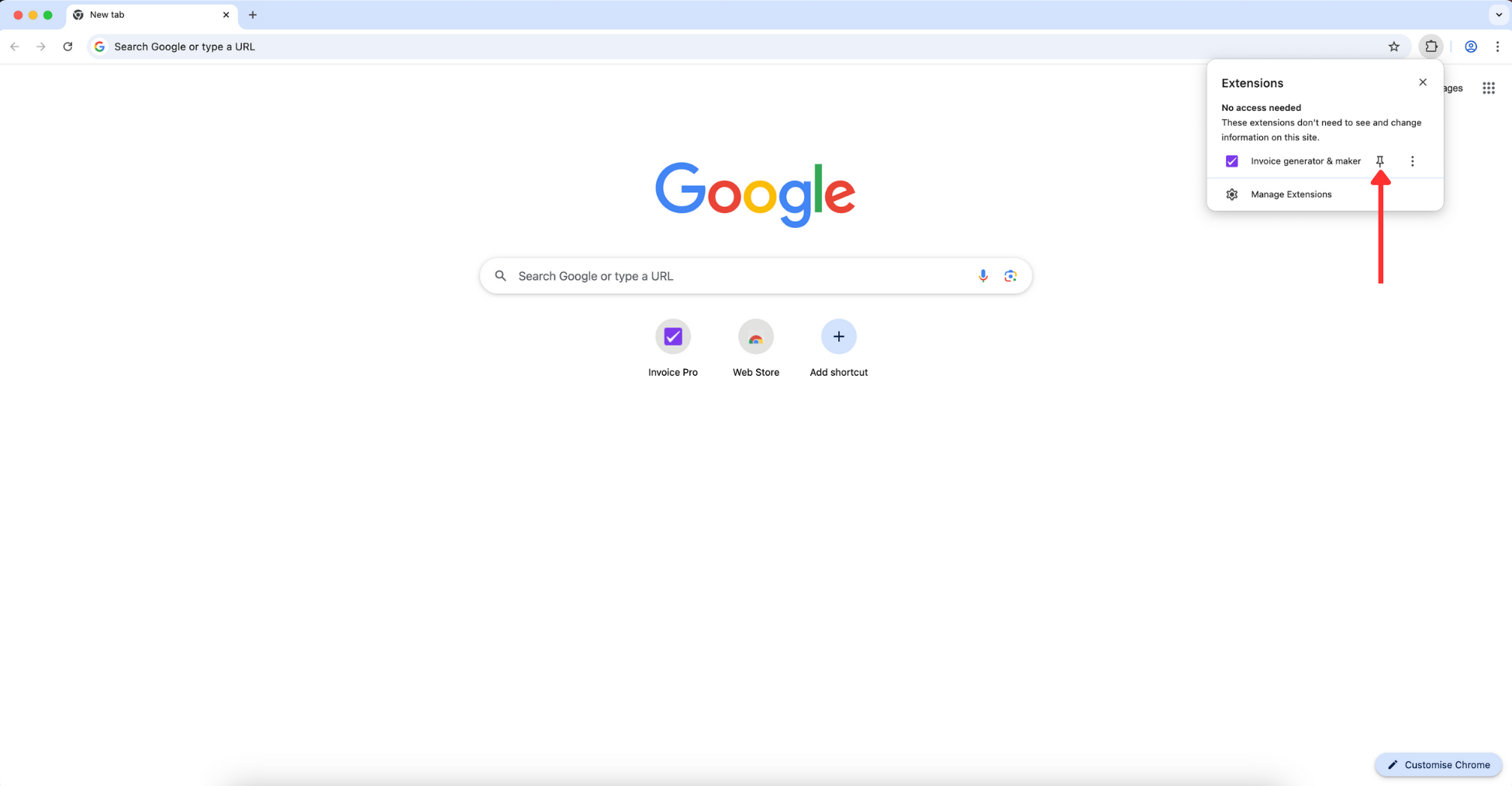
Look for "Invoice Generator & Maker" in your installed extensions list. Click the pin icon next to it to keep it visible in your browser toolbar for easy access.
Start Invoice Extension
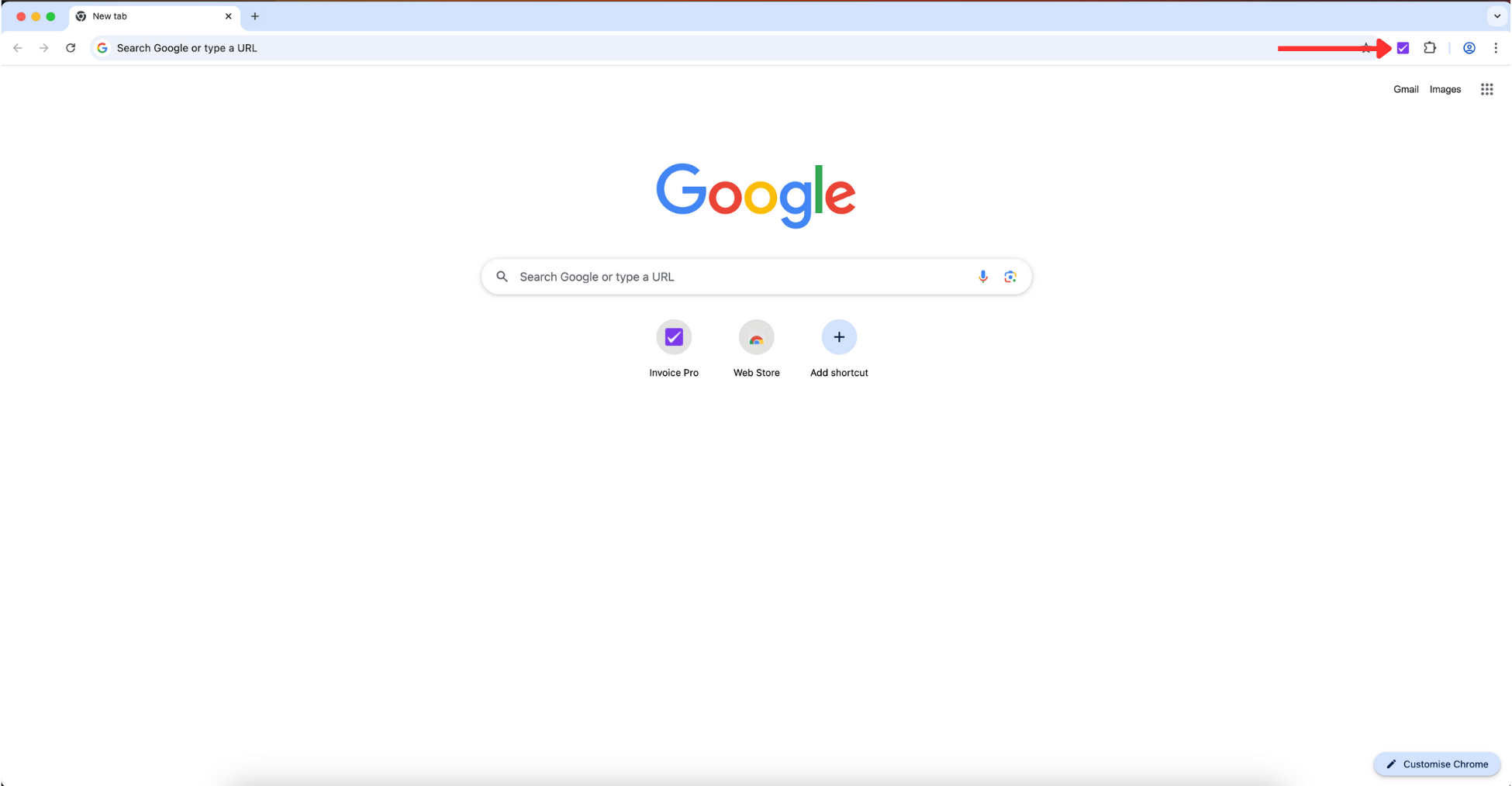
Click the Invoice Generator & Maker icon in your toolbar to open the extension. You'll see the main interface with options to create new invoices, manage clients, and view existing invoices.
Fill Invoice Details
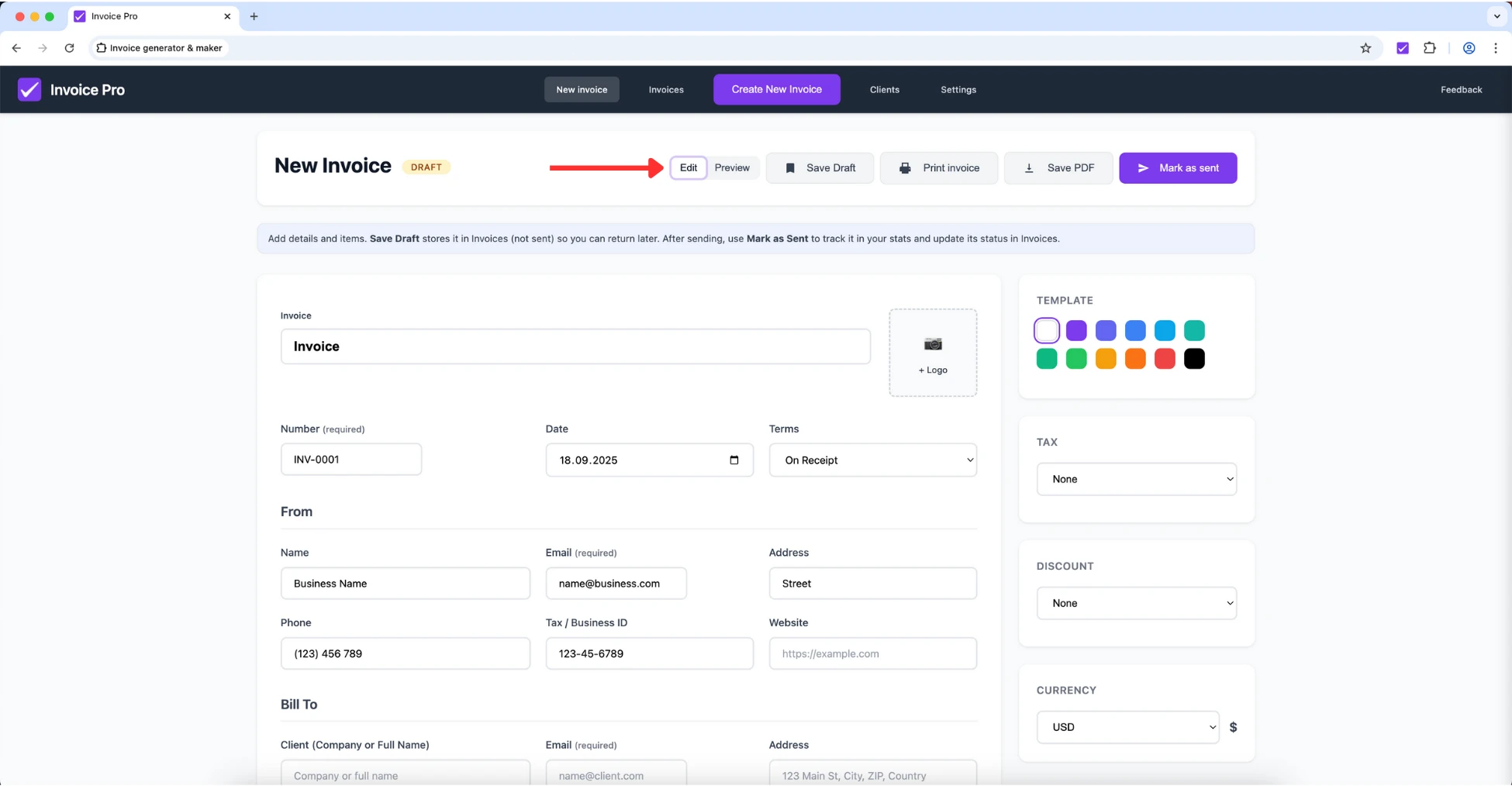
Fill in your business information, client details, add line items with descriptions and prices. The extension will automatically calculate subtotals, taxes, and the final total.
Preview, Save, Print & Mark as Sent
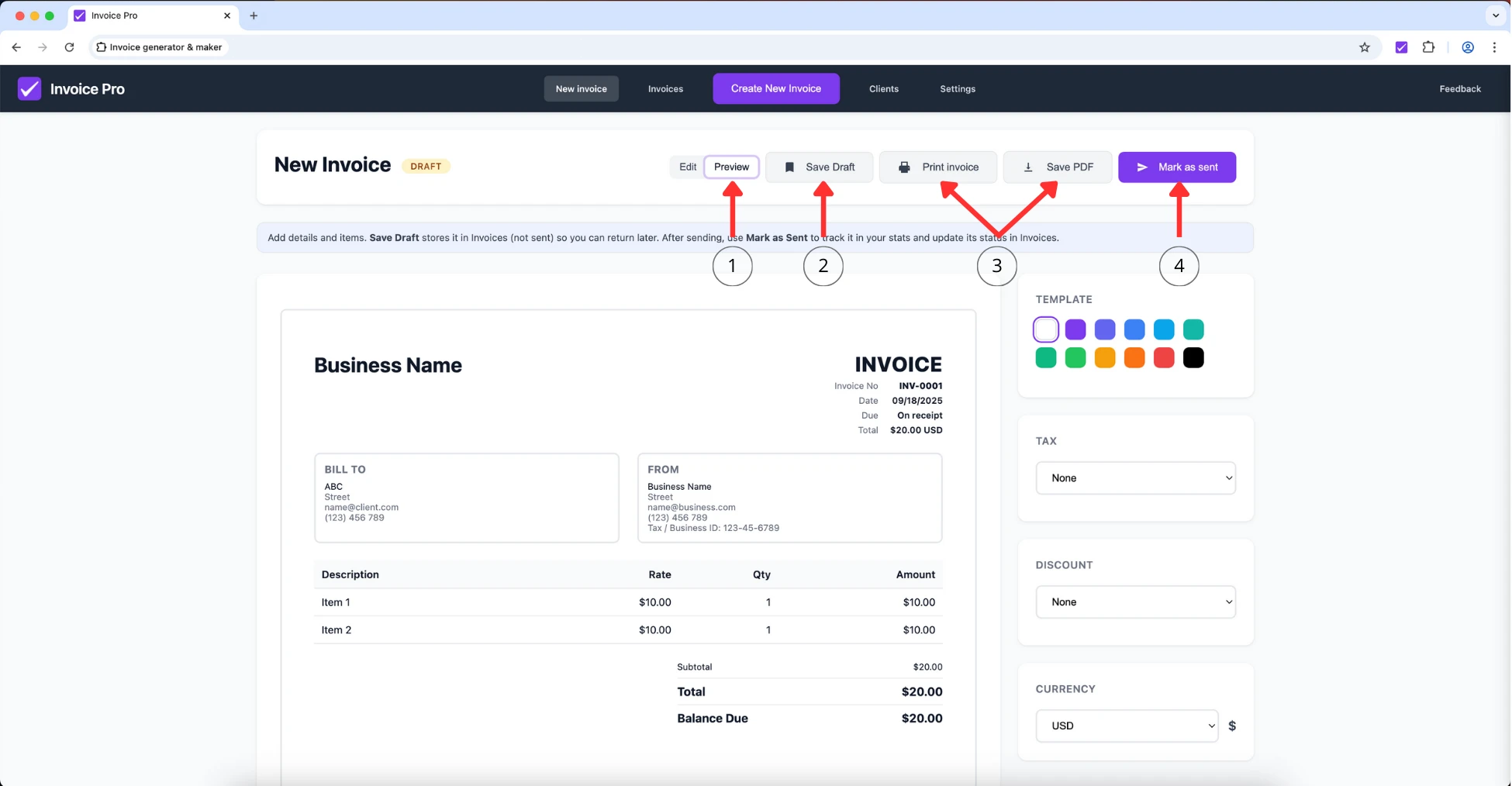
Use the action buttons to: Preview your invoice, Save Draft for later editing,Print/Save PDF for sharing, and Mark as Sent to track its status.
You're All Set!
You've successfully installed and set up Invoice Generator & Maker. Check out the Full Guide below for detailed instructions on all features.